Skip to content

Time tracking

Working time you can explain, task by task

The desktop app measures time on the task each person has chosen. People review their day, managers review corrections, and every figure in a report can be traced back to the record behind it.

ApprovalsFriday

Akollo17:05

A timesheet for week 41 is ready for your approval.

logged
38:30 h
billable
31:00 h
overtime
0:30 h
Approve weekAsk for a changewaiting 2 h

My day

Every person sees their own day first

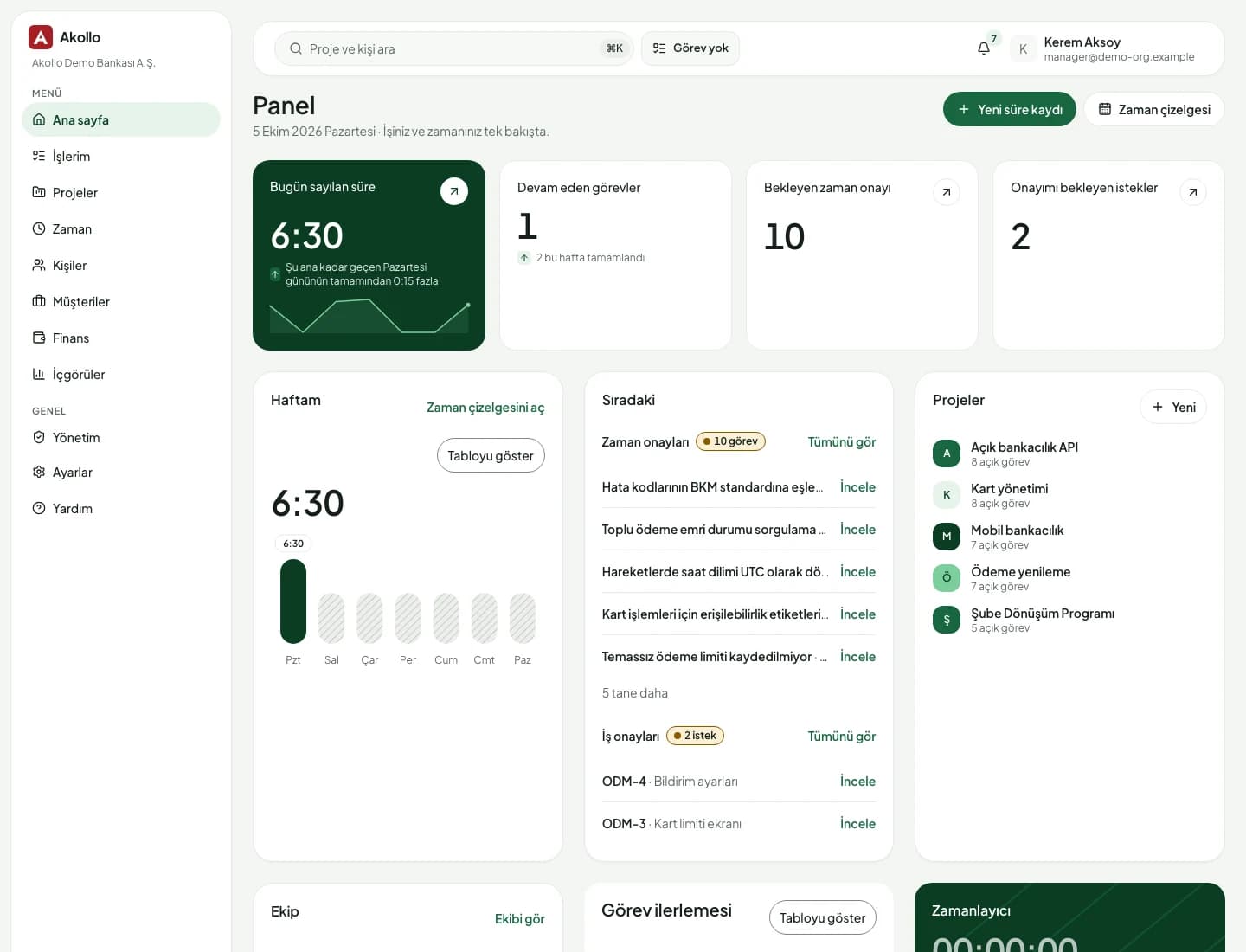
My day shows the devices a person uses, the task each one is running and the day's totals: credited, worked and payable time, plus entries still waiting for approval.

  • Choose the current task for a device in one step
  • Day view by state, category and task, with a “day at a glance” strip
  • Notes that explain any time that was not credited
Akollo home dashboard showing time counted today, open tasks and this week's hours

Timesheet

A week on one screen

The timesheet shows an ISO week as a daily, weekly or calendar view. The day total is credited time plus approved time entries; pending entries are not counted until they are approved.

  • Daily, weekly and calendar views
  • Day and week totals from approved time only
  • Days that fall only partly in your scope are marked
  • Submitting a timesheet for approval is planned

Reports and exports

From one interval to a finance-ready CSV

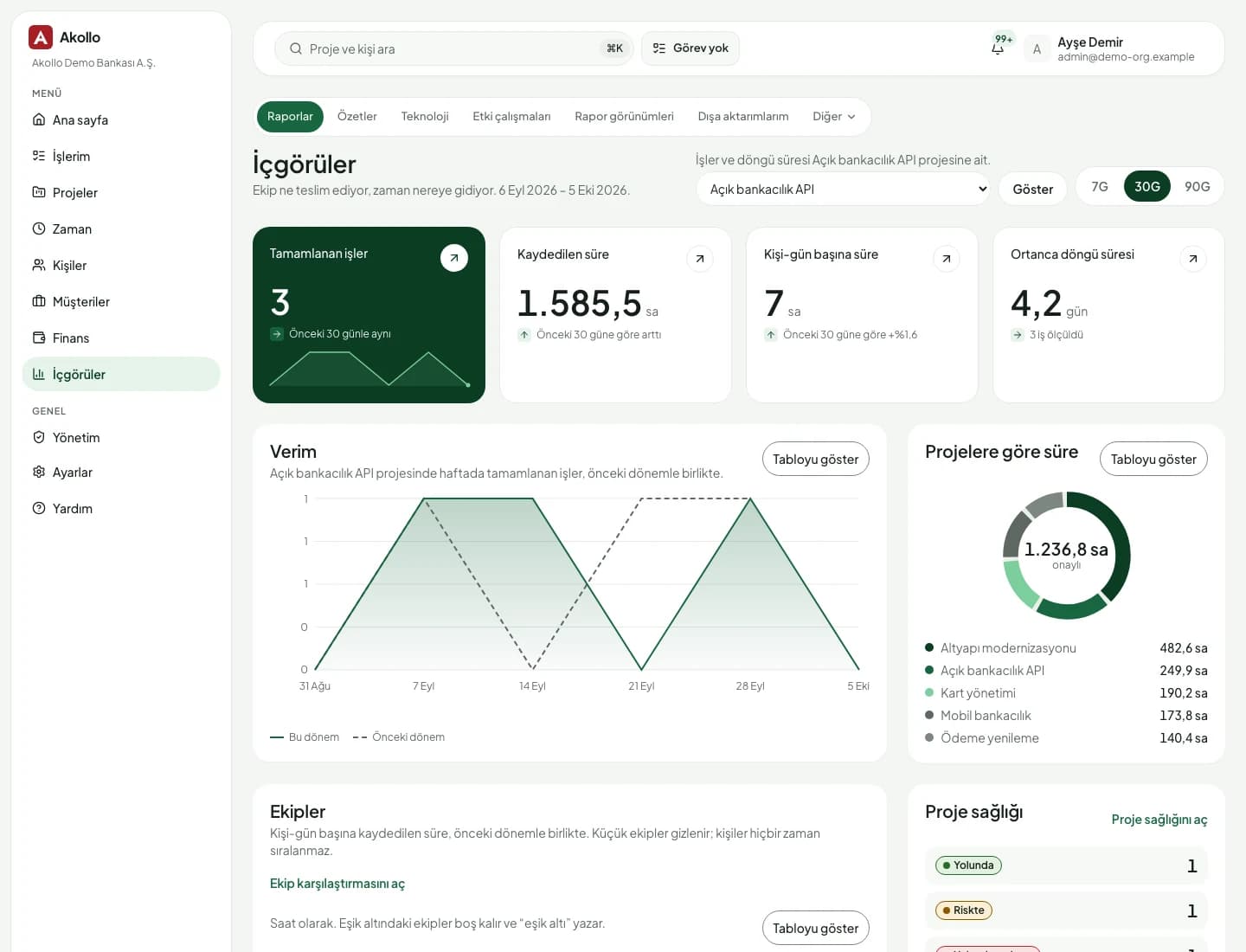
Time reports group a period by day, task, application, category or employee. With the export permission, the same report becomes a CSV or Excel file, and every download checks the caller's scope again.

  • Credited, worked, overlapping and no-task time
  • Figures after corrections next to the originals
  • CSV and Excel exports with an expiry date
Akollo insights page with logged hours, a throughput chart and hours by project
  • 01

    Time on the right task

    Each device runs the task its owner selected, so measured time is credited where the work happened.

  • 02

    Corrections, never silent edits

    A correction is proposed with a reason and approved by a second person. The measured record stays as it was.

  • 03

    Reports that show both

    Corrected and original figures sit side by side, so an auditor sees what changed and why.

  • 04

    Managers see only their scope

    Managers see only the people in their scope, in every view, report and export.

AI on this module

Ask before the week closes

The assistant reads your own days and makes suggestions. It never adds time for you.

AI never adds to a total, a payable figure or a pay input, and it never approves anything.

Everything between the clock and the report

Time is measured once and used everywhere: tasks, projects, approvals, reports and the AI assistant.

  • Desktop measurement

    The desktop app records time against the selected task, following your organisation's recording policy.

  • My tasks

    Start a task, submit it for review with a delivery note, and see the last 24 hours of credited time.

  • Time corrections

    Change an interval's task or category, or mark it worked or not worked, with a reason and a second approver.

  • Team days

    Managers with review permission open the day of anyone in their scope.

  • Task approvals

    A queue of tasks submitted for review. Approve or reject with a reason; past decisions stay listed.

  • Time reports

    Group and filter by device, task, project and category; leave out holidays or include time with no task.

  • Missing-time hints

    Ask the assistant “Did I miss time anywhere?” to find short days. Adding the time is still your decision.

  • Turkish and English

    Every screen and export in both languages, per user.

How the modules connect

Hours that feed planning and cost

Approved hours land on the task and project they belong to. Reports read them from there, and Profitability prices them with each person's cost rate, so nobody re-types a timesheet.

  1. 01Plan

    Turn goals into projects, backlogs, sprints and timelines.

  2. 02Staff

    Pick people by skills, availability and leave.

  3. 03TrackYou are here

    Record time by hand or with the desktop app, on the right task.

  4. 04Bill

    See cost, budget, billing and margin per project and client.

  5. 05Improve

    Read what happened and plan the next round better.

The AI assistant works across every step, with your permissions and only after you confirm. AI assistant

Deployment and security

Runs where your data has to stay

The same Akollo in our cloud, in your own cloud or on your own servers.

  • Cloud or your own servers

    Choose where Akollo runs. Every module works the same way in each setup.

  • Your own AI model

    Point the assistant at a local model inside your network or at your own provider.

  • Scope in every view

    Managers see only the people in their scope, in every screen, report and export.

  • Audit records and four eyes

    Privilege and configuration changes are recorded, and sensitive ones wait for a second person.

Questions about Time tracking

Does idle time mean no work was done?

No. Meetings, offline work and device problems can all show up as idle or missing time. The day view explains time that was not credited, and a correction can be proposed with a reason. The Desktop agent page explains what is measured.

Can someone change the measured time?

No. A correction is a separate record that a second person approves. Reports show the corrected figures next to the original ones, and the measured record is never overwritten.

Who can see my time?

You see your own days. Managers see the people in their scope, and only with the review permission. Every report and export applies the same scope.

Can we export time to payroll or finance?

Yes. People with the export permission create CSV or Excel exports of a time report. Each export lists its period, row count and expiry, and each download checks scope again. Insights & reports covers the wider reporting options.

See your own week in Akollo

We set up a demo with your working hours, your approval rules and your terminology, in English or Turkish.